



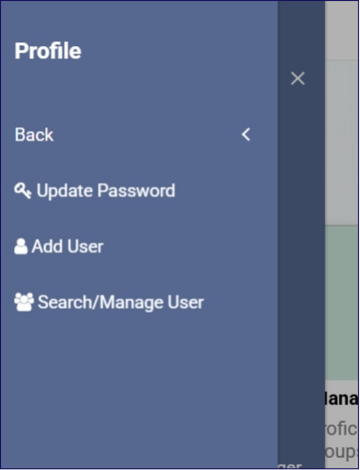
✅Step 1: Open the Profile Menu
- Click the Menu button (☰) in the top-left corner.
- Select Profile from the menu.
- Click Add User.
✅Step 2: Fill in User Information
- Role: Select one from the dropdown
- District Admin
- School User
- School Associations:
- Leave blank if the user is a district level user.
- If the user is at the school level user, select the correct school.
- Account Enabled:
- Leave this set to Yes.
- App Access:
- Select ALL reports/apps available by checking each one:
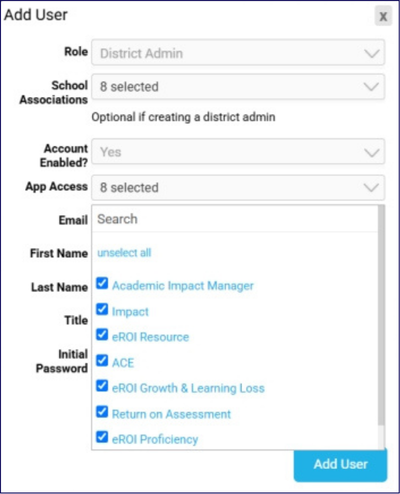
- Select ALL reports/apps available by checking each one:
✅Step 3: Enter User Details
- Email: Enter the user’s email address.
- First Name and Last Name: Enter the user’s full name.
- Initial Password: Type a generic password to share with the user.
✅Step 4: Finish Setup
- Click Add User to complete the process.
- Send the login information (email and password) to the new user directly via email.