


Below is a simple and streamlined workflow allowing schools to quickly generate data required to determine their students' P-EBT eligibility using Level Data’s RealTime Reports.
- Select the desired students for which you wish to run the report. (i.e., Virtual, Hybrid In-Person) by running the appropriate search statement.
- From the Start page, click on the RealTime Reports link in the Level Data Apps section.
- Click on the Lunch Status Analysis Report. Note: Users must have access to both the Lunch Status field and the Lunch Status Analysis report.
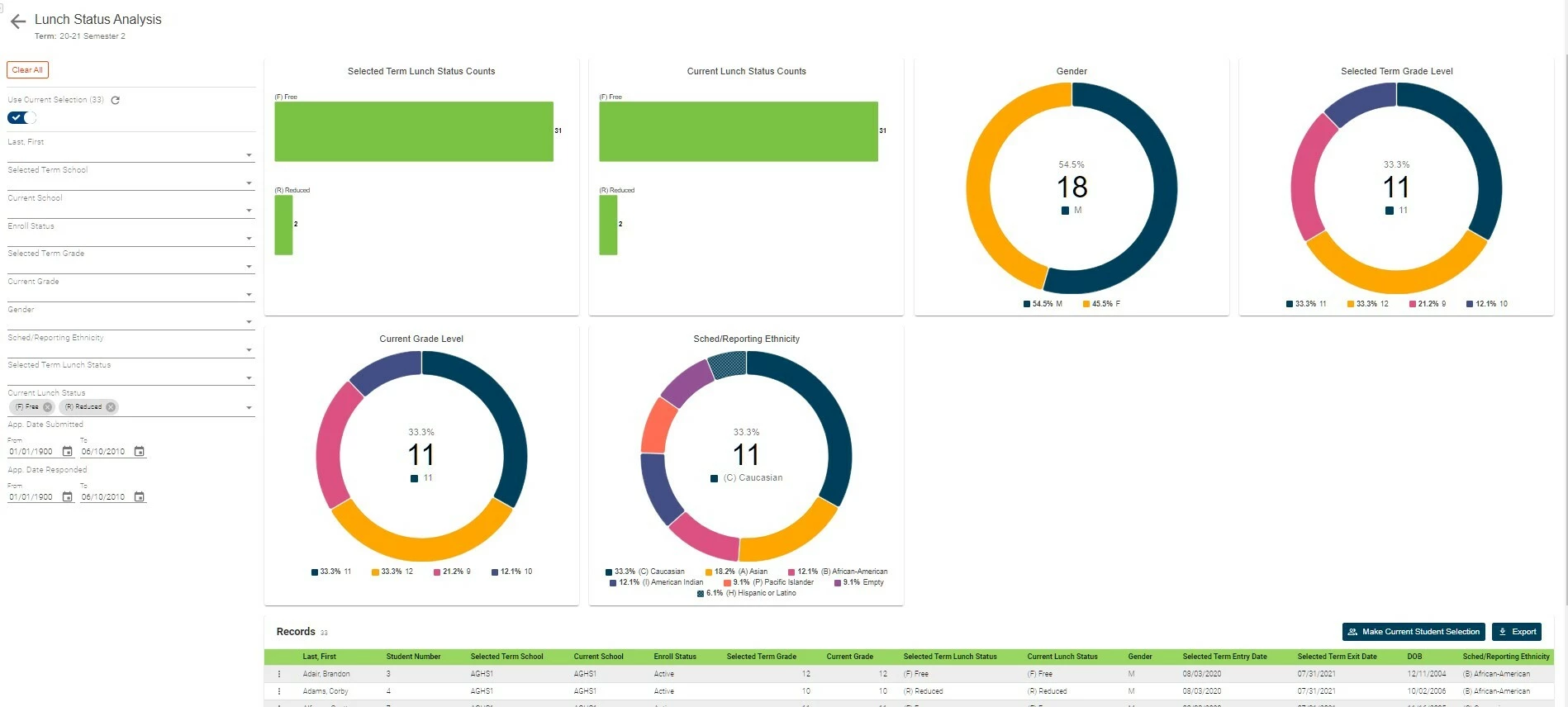
- Once in the report, at the top of the filter column, set the “Use Current Selection” filter to ON.
- From the Current Lunch Status Filter select the Lunch Status Value(s) for which students would qualify for P-EBT. Note: If you need to report which students are Free vs Reduced, work through this workflow for each status separately. (i.e., Once for Free and then for Reduced).
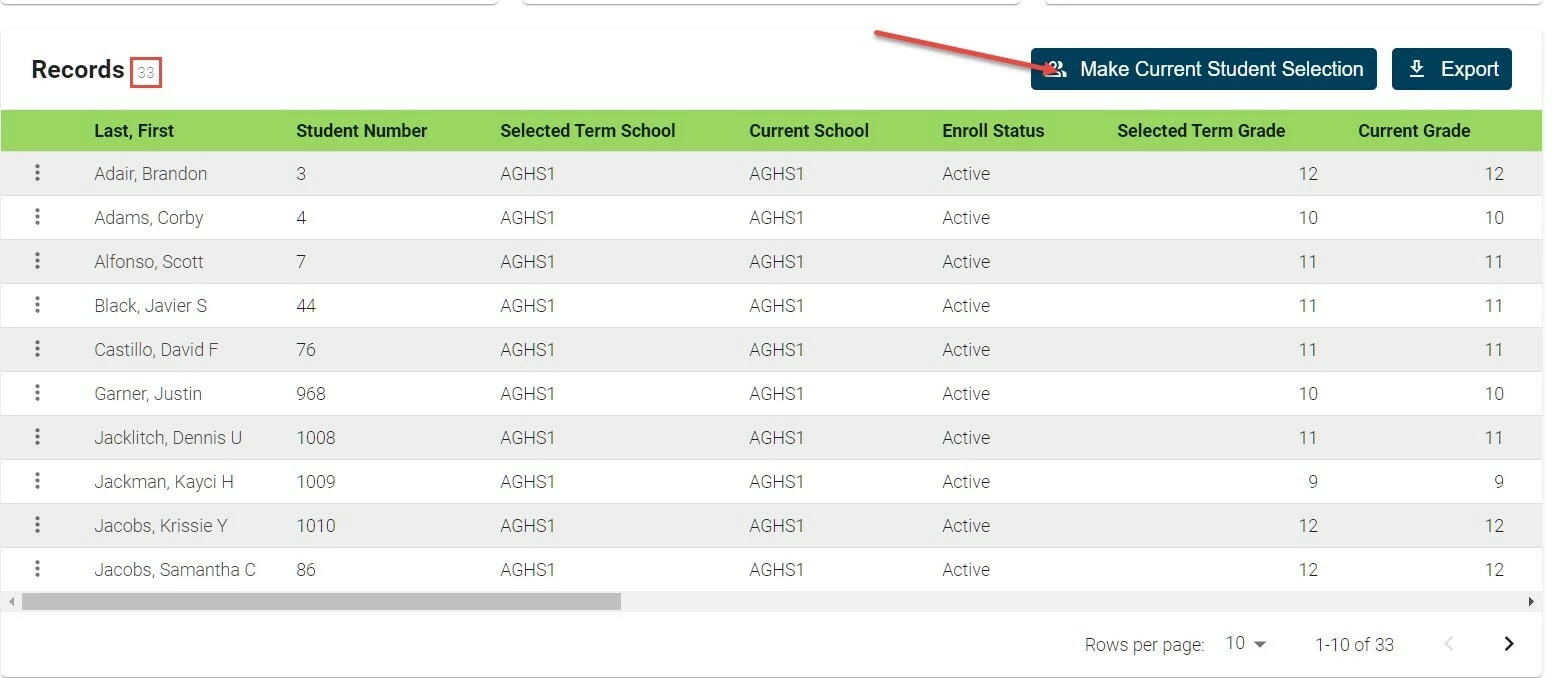
- Click on Make Current Student Selection.
- Return to the Report Dashboard and select the Attendance Summary Report.
- On the Pre-filter window:
- Select the date range for which you need to review attendance data.
- Select the Attendance Code(s) that equate to Present (Default Present or actual Present codes.)
- The student selection should be the same group that you made the current selection from the Lunch Status Analysis report.
- Click Run.